How do I enter deposits?
Add a service deposit to a customer account.
A deposit is an advance payment required by the organization prior to services being provided. Once services have been provided the deposit can be applied to open (unpaid) services or refunded (returned) to the customer. To apply, refund, or transfer a deposit, see the help topic titled How do I manage deposits?
What's new
-
2018.11 or later. See what's new in the 2018.11 release (4m50s). Added a zero deposit option for multiple services.
-
2018.08 or later. See what's new in the 2018.08 release, including backdating a deposit and entering a zero deposit (1m50s)
-
2018.02 or later. See what's new in 2018.02 for entering deposits, including, pending deposits, Utility Management Deposits interface, and deposit service (5m29s).
Watch a video
Updated 14Aug2018
Entering deposits
1. Open Connect Utility Management > Customers > Enter Deposits.
2. Enter a Customer.
3. Select a Service.
Use the Service menu to select the service with a deposit.
4. Enter a Check Number.
A check number is a unique number that is assigned to each check.
Is the payment type a check?
-
Yes, the payment type is a check. Enter the check number, printed at the top of the check, in the Check Number field.
-
No, the payment type is cash, credit card, or other. Leave blank the Check Number field.
5. Enter a Source ID.
The source ID is a user-defined field that allows you to save a last name or code with the transaction. This field is optional.
Do you want to record the source ID?
-
Yes, I want to record a source ID. Use the Source ID field to record the information.
-
No, I do not want to record a source ID. Continue to the next step.
5. Enter a Description.
This is the transaction description for the service deposit.
6. Enter an Amount.
This is the service deposit amount.
7. Click Save (CTRL+S).
The service deposit is saved.
Changing a deposit
1. Open Connect Utility Management > Customers > Enter Deposits.
2. Use the Date field to enter the same input date that you used to record the transaction. The transaction grid displays all of the transactions that were created on the input date.
3. Click Edit (CTRL+E).
4. Use the Reference Number to enter the reference number that belongs to the transaction that you wish to edit.
5. Now, you can edit the deposit properties.
6. Click Save (CTRL+S).
The deposit is saved.
Deleting a deposit
1. Open Connect Utility Management > Customers > Enter Deposits.
2. Use the Date field to enter the same input date that you used to record the transaction. The transaction grid displays all of the transactions that were created on the input date.
3. Click Delete (CTRL+D).
The deposit is deleted.
Printing a pending deposit report
See the section titled Printing the Pending Deposit Report.
Updated 07Feb2018
What if a deposit is paid through Xpress Bill Pay?
If a deposit is paid through Xpress Bill Pay, call Caselle support at (800) 243-8275. Watch a video clip (1m1s).
Updated 07Feb2018
Can I backdate a deposit prior to the current period?
Yes, you can change the deposit transaction date to a date that occurs before the current period.
Updated 12Jun2018
How do I enter a deposit for a zero amount?
If you're running 2018.08 or later, you can enter a deposit amount of zero.
Updated 23Jul2018
How do I enter a zero deposit for more than one service?
Set up the Options (F12) in Enter Deposits to allow deposits for a zero amount. Next, select which service will allow a zero deposit.
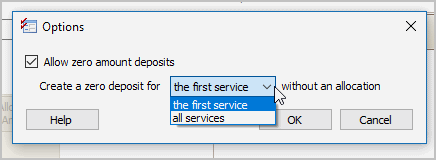
Options
Updated 21Aug2018
Copyright © 2025 Caselle, Incorporated. All rights reserved.