How do I update customer balances?
Tax Certification
Use Update Customer Balances to reduce the customer's account balance by the certified amount. After you create tax certifications, the certified amounts will be displayed in Customer Inquiry; however, you'll need to run this routine to apply the certified amount to the customer's balance.
Watch a video
Learn how to update customer balances with certified amounts (3m28s)
Updated 16May2018
Updating customer balances
Apply the certified amount excluding fees to a customer's account balance. The tax certification fee will be recorded as a separate transaction. Certified amounts are payment adjustments (PAdj) and tax certification fees are fee transactions (Fee).
Do this...
1. Open Connect Utility Management > Tax Certification > Update Customer Balances.
2. Select the Print option.
3. Set up the Transaction Options.
Date
This is the date the system will use to record the transactions for the printed certification notices. The default date is the date that was selected when you ran Create Tax Certification Records.
Important! The date must include the certification date.
Description
This is the transaction description. The variable {year} will be replaced with the current four-digit year. For example, Tax Certification April 2011
4. Select the Certifications to Include.
5. Do not select the checkbox titled Update Certifications That Have Already Been Updated.
6. Set up the Selection Criteria (optional).
What is the selection criteria?
How do I add/remove fields to a selection criteria?
How do I define values in a selection criteria?
How do I search for an exact match?
How to use operators in the selection criteria?
7. Set up the section titled Update Customer Accounts (optional).
8. Click GO (CTRL+G).
The certified amounts are recorded as payment adjustments on the customer's account. Now, when you return to Customer Inquiry, the customer's account balance will decrease by the certified amount. (You may need to click Refresh (CTRL+R) to load updates to the customer's account.)
Updated 16May2018
Viewing adjustments to accounts with certified amounts
Use Customer Inquiry to view payment adjustments that record certified amounts. After you create and update tax certifications, you can use the Transactions tab in Customer Inquiry to view the applied amount. The certified amount is applied to the customer's account balance as a payment adjustment (PAdj). To view the payment adjustment detail, in other words, how the certified amount is applied to each service, find the section titled Adjustments and uncheck the Adjustments checkbox.

Customer Inquiry
How does the routine know not to certify the current portion?
When you're in Customer Inquiry, you can see the certified amount. However, if you click on the History tab you'll be able to see the current portion. The current portion is defined in the Service table (Organization > Services) and it is the number of periods a service must have a balance to be considered delinquent. The portion of the customer's service balance that is not late will not be included in the certified amount. Only the portion that is older than the certification period will be included in the certified amount.
For example, the service settings use a two-month certification period and the current period is 4/30/2011, which means the length of the current portion is two periods (4/30/2011 to 3/31/2011).
4/30/2011, 0.00
3/31/2011, 68.88
2/28/2011, 65.77
1/31/2011, 70.51
12/31/2010, 68.27
Balance: 273.43
That means the service balance that is subject to tax certification includes all of the months that occur prior to the current period minus the certification period, or 2/28/2011 to 12/31/2010. Even though there's an unpaid amount in 3/31/2011, that amount will not be included in the certified amount because it's part of the current portion. The certified amount excluding amounts in the certification period is 65.77 + 70.51 + 68.27 = 204.55.
Why do customer accounts show duplicate certification-type transactions?
If you use the same date to record certifications, certification payments, and certification adjustments, some of the certification transactions may be updated more than once. You can prevent this from happening by choosing a different date to enter certification adjustments.
Usually, you'll receive a batch of certification payments on the first or last day of the month. If you use the first or last day to enter certifications and enter certification payments, you'll want to choose a different day of the month to enter certification adjustments. This will allow you to use a date range that will only include certification adjustments when you update the customer balances. If you use the same date to update certifications, certification payments, and certification adjustments, running Update Cusstomer Balances will update the customer accounts twice. Once for certifications and a second time for certification adjustments.
Published on 17Jul2017
Updating collection code on customer accounts
Utility Management stores one collection code for each customer. You can assign a new collection code to a customer when you run this routine. You can assign a collection code to a customer who does not have a collection code or replace the collection code that is saved in the customer's record with a new collection code.
Remember, each customer account may have only one collection code.
Do this...
1. Open Connect Utility Management > Tax Certification > Create Tax Certification Records.
2. Set up the options as usual.
3. Find the section titled Update Customer Accounts.
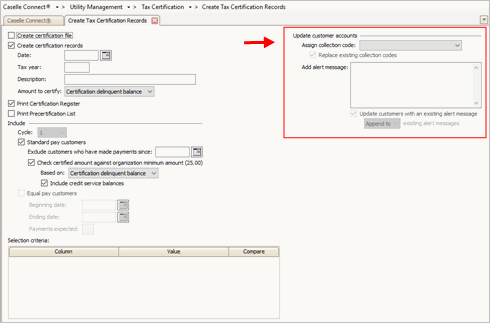
Update Customer Accounts
4. Use the Assign Collection Code menu to select a collection code.
To add a new collection code, see the help topic titled How do I set up collection codes?
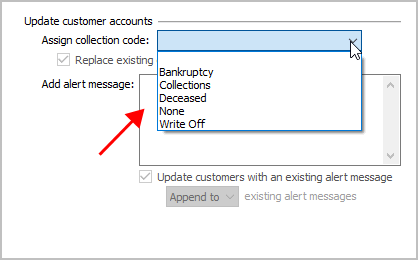
Assign Collection Code menu
5. Set up the checkbox titled Replace Existing Collection Code.
Selecting the checkbox will replace the customer's existing collection code with a new collection code. Leaving the checkbox blank will assign the new collection code to a customer if the customer does not have a collection code. Customers who have a collection code will not be assigned the new collection code.

Replace existing collection codes
What do you want to do?
I want to replace a collection code on ALL customers. Click to select the checkbox titled Replace Existing Collection Codes. This option will add the collection code to customers who do not have a collection code AND replace the collection code on customers who do have a collection code.
I want to add a collection code to customers who do not have a collection code. Do not select the checkbox titled Replace Existing Collection Codes. Running the routine will add a new collection code to customers who do not have a collection code. It will not replace an existing collection code.
6. When you have finished setting up the routine, click GO (CTRL+G).
The collection code that you have selected is assigned to the customers that you have selected.
Updated 17Apr2018
Updating alert message on customer accounts
When you run this routine, you can set up an alert message on a customer account. Customer accounts can have more than one alert message. When you add an alert message for certification, you can replace the existing alert message with a new alert message or you can add a new alert message to the end of the existing alert message. Adding the new alert message will show all of the alert messages on the customer's account in the Alert Message pop-up window.
Do this...
1. Open Connect Utility Management > Tax Certification > Create Tax Certification Records.
2. Set up the options as usual.
3. Find the section titled Update Customer Accounts.
Update Customer Accounts
4. Use the Add Alert Message field to enter an alert message.
The text that you type in this field will be displayed on the screen when you look up a customer account. Customers can have more than one alert message.
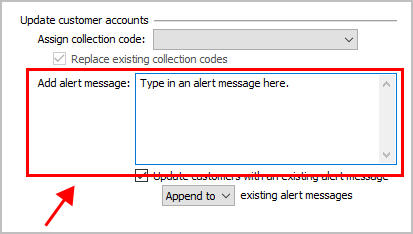
Add Alert Message
5. Set up the checkbox titled Update Customers With an Existing Alert Message.
You can add or replace an alert message. Appending an alert message will add the new alert message to the existing alert message. This option will save all of the alert messages tied to a customer's account. Replacing an alert message will delete all of the alert messages tied to a customer's account and replace them with the new alert message.
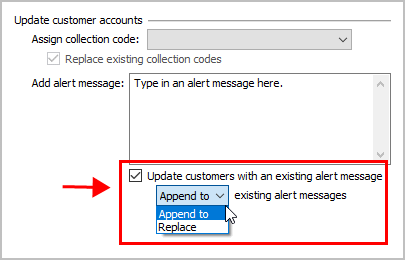
Update customers with an existing alert message
What do you want to do?
I want to replace the existing alert message with a new alert message. Select the checkbox titled Update Customers With an Existing Alert Message and then use the Existing Alert Messages menu to select Replace.
I want to add a new alert message to the existing alert message. Select the checkbox titled Update Customers With an Existing Alert Message and then use the Existing Alert Messages menu to select Append To.
I do not want to add a new alert message if a customer has an alert message. Do not select the checkbox titled Update Customers With an Existing Alert Message.
6. When you have finished setting up the routine, click GO (CTRL+G).
The routine uses the options you have selected to add a new alert message.
Updated 17Apr2018
Updating certifications for unupdated dates
Use this option to only update certifications that have not been posted to customer accounts.
Updated 16May2018
Updating certifications that have already been updated
This checkbox is usually not selected. This option is for troubleshooting situations that require you to update certifications that were updated and need to be replaced.
Updated 16May2018
Copyright © 2025 Caselle, Incorporated. All rights reserved.